Could this photo reveal where you live? Check before you post.
A picture can carry location data—or give the place away through a familiar sign or view. Here is the quick check.
The GPS data disappeared. The street sign did not.
We combined two synthetic test images, one with deliberately added GPS data, and saved PNG and JPEG copies. Neither export contained EXIF GPS. The address drawn in the picture was still visible.
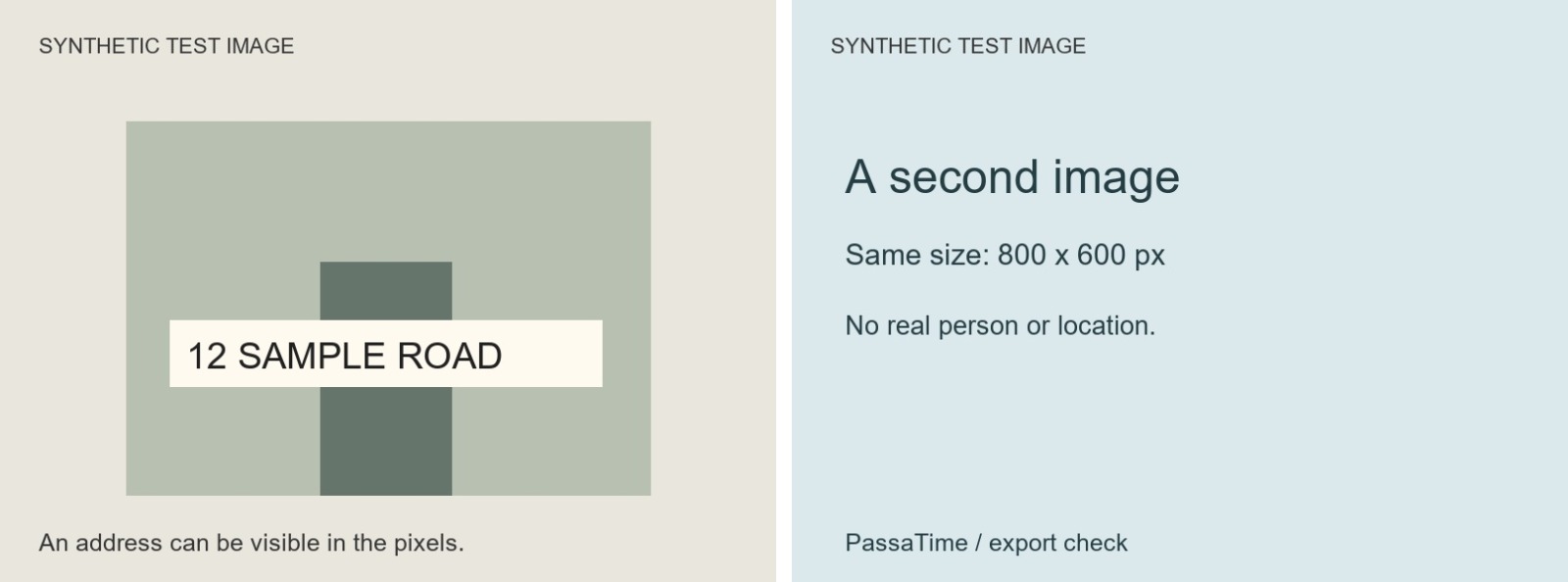
Test files and measurements
| File | Size | EXIF GPS |
|---|---|---|
| Input A | 33,139 B | Present (synthetic) |
| PNG | 195,678 B | Absent |
| JPEG | 49,856 B | Absent |
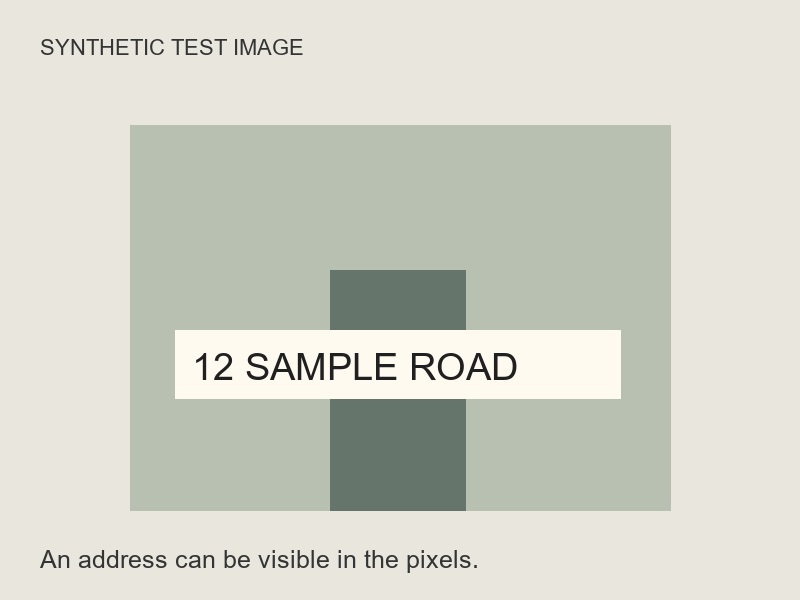
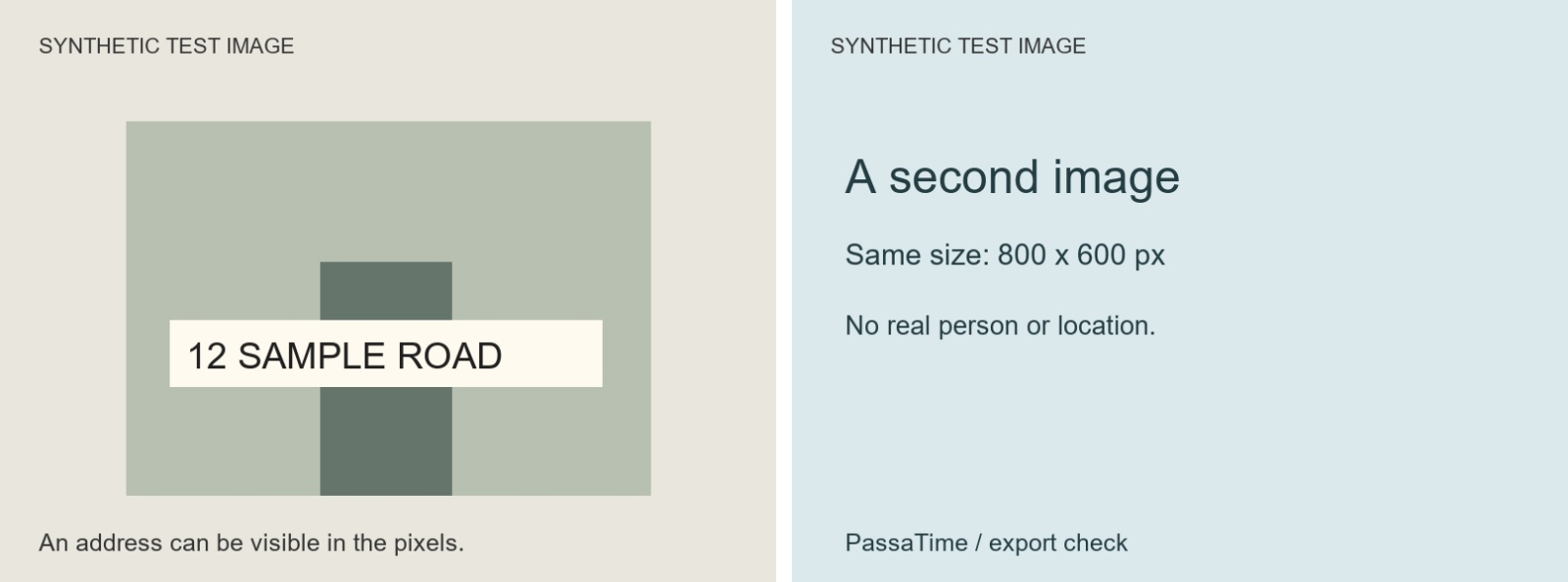
Tested 2 Oct 2026 in one Chromium browser on Windows. Synthetic images, not a real person, address or capture location. This does not cover every device or file format.
Try combining and covering this sample →
Removing metadata and covering visible details are different tasks. Cover names, addresses and QR codes you do not want to share with a solid area, then inspect the downloaded result.
On iPhone: turn off the location
Open the photo and tap Info to inspect its location. Choose More → Adjust Info → Adjust Location → No Location. To leave location out when sharing, open Share → Options and turn Location off. Menu wording can vary by OS version.
Sending a file outside Google Photos
Google Photos sharing settings and GPS in the original file are different. If you download an original and email it, the camera’s location may remain. Google Photos cannot directly change or remove locations added by your camera; check the file separately.
Sources: Apple Photos · Google Photos.